CLIENT GUIDE · OPTIONS
Ironveil client options
Find your settings in the Journal-style Options window, then customise the Ironveil helpers on your game screen. Update your client through the official launcher.
CLIENT 1.1.95
New Options window
Rebuilt in the Ironveil Journal style. Same options, much easier to find.
| What changed | How to use it |
|---|---|
| 10 categories | Choose a category in the sidebar, then its tab. The sidebar contains Ironveil, Gameplay, Combat, Interface, Items & Loot, Chat & Text, Graphics, Audio, Controls & Macros, and Advanced. |
| Search | Type run, volume or hp to find a setting. Change it directly in the results. |
| Dependent options | Related settings are indented below the option they depend on. Unavailable controls are greyed out and explain why. |
| Defaults per tab | Defaults resets only the tab you are viewing. |
| OK / Cancel | Press OK to save your changes and close, or Cancel to discard pending changes. The new window has no Apply button. |
| Move and return | Drag the window where you want it. It remembers the last page you opened. |
| Your settings stay | The redesign changes how you find options, not what they do. Existing saved settings load as before. |
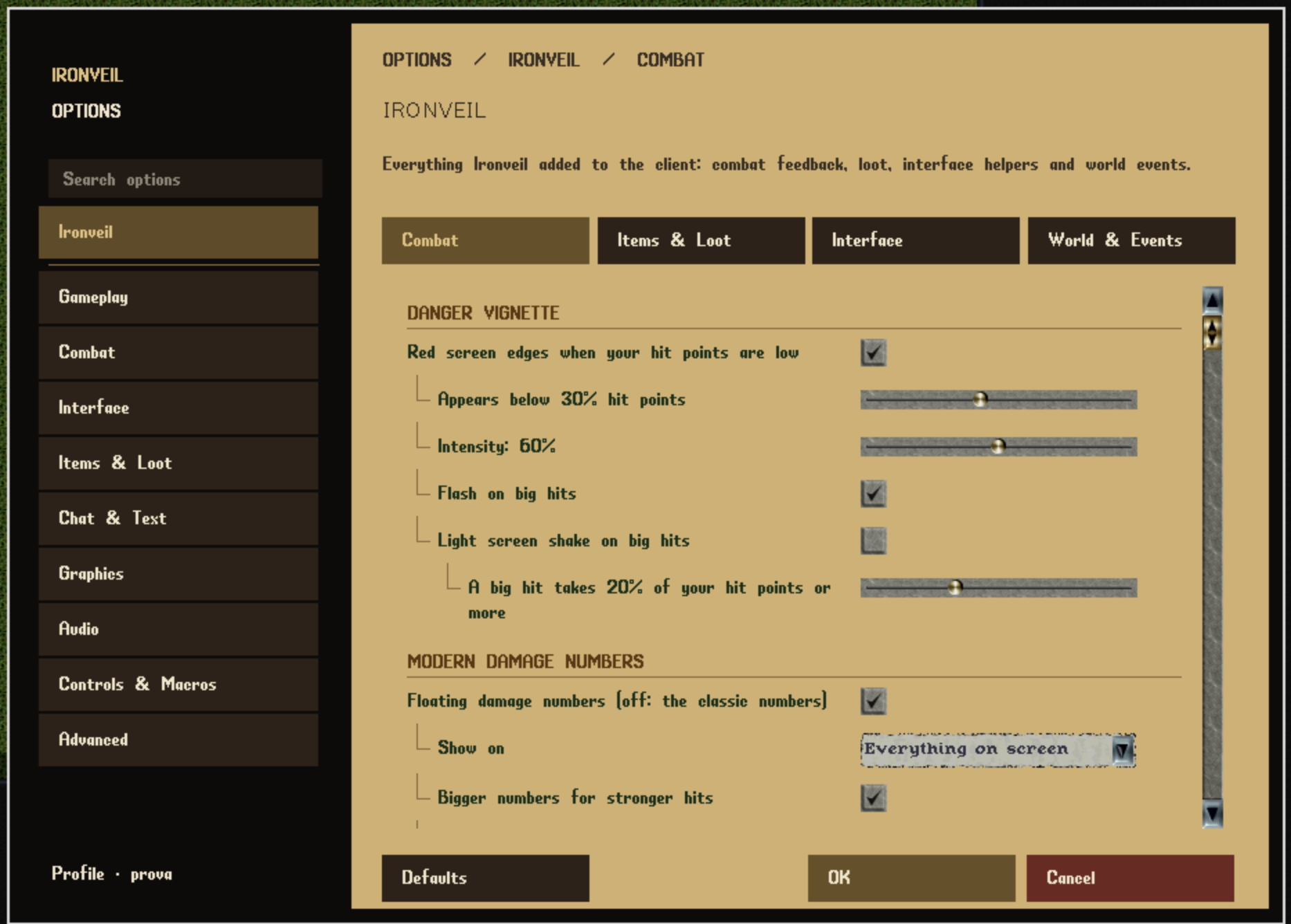
Ironveil's helpers are in Options → Ironveil, across four tabs: Combat, Items & Loot, Interface and World & Events. Press OK after a change; no relog is needed.
These helpers only show information the game already knows. They do not change combat rules, rewards or prices. Each feature has its own switch: untick it and press OK to turn it off.
Found a bug or have an idea? Tell us on Discord.
Prefer the classic Options window?
You can switch back without losing your saved settings.
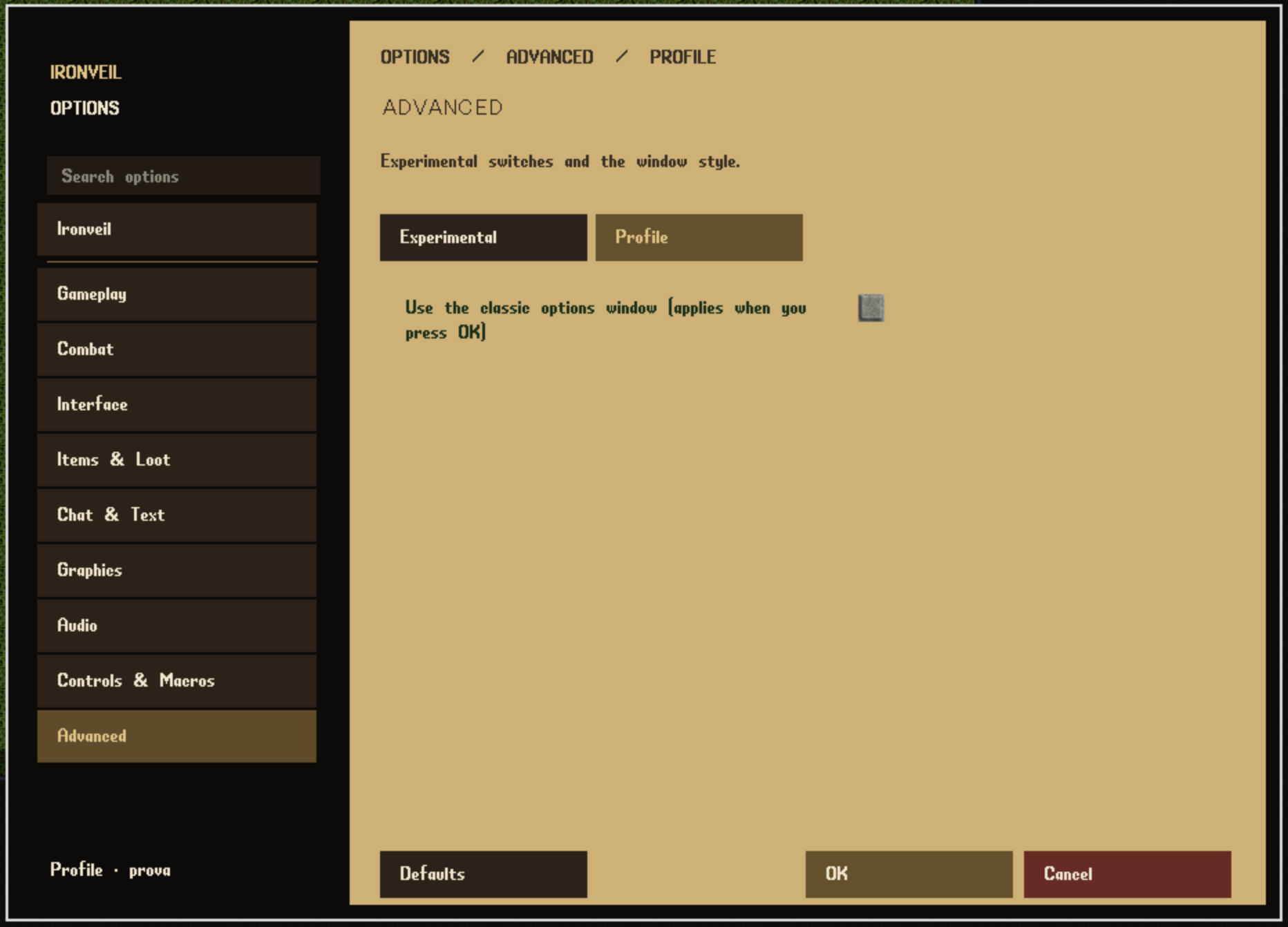
- Open Advanced → Profile.
- Enable Use the classic options window.
- Press OK to apply the window style.
Your profiles and macros stay in place. The classic window keeps its original Apply button.
Combat
| Feature | What you get |
|---|---|
| Danger vignette | Red, pulsing screen edges when your health is low (from 30%), stronger and faster as it drops. A short flash on a big hit. Optional light screen shake. |
| Damage numbers | Numbers rise from the target in an arc. Cream for your hits, orange and bigger for a big one, red when you are hit, green for heals. Hits on the same target add up (x4). Off = the classic numbers. |
| Cast counter | A number on your spell icons: how many casts your reagents (and scrolls) allow. Orange when low, grey icon at 0. Hover for the list. Reagents in a pouch count once you have opened it. |
| Spell words, death recap, ghost arrow | Same as before, now on this tab. |
Loot & items
| Feature | What you get |
|---|---|
| Loot pop-ups | Gold and items you pick up appear in a corner of the screen, with their picture. The same thing picked up again within 2 seconds merges (+1,240 gold, x3, "from 3 corpses"). Choose loot only or everything entering your backpack, and the corner. |
| Backpack weight | The weight turns orange from 85% and red and pulsing from 95%. One warning when you cross the line, and "Overloaded" above the maximum. |
| Item comparison, vendor price reason | Same as before, now on this tab. When a city tax or discount changes a vendor's prices, the buy window says why and by how much. |
Interface
| Feature | What you get |
|---|---|
| Quick wheel | Hold Alt+Q (just Q if Activate chat after Enter is on). A wheel opens around you: move the mouse to a slice and click it. Esc or right-click closes it without doing anything. Default slices: Wave, Bow, Applaud, Laugh, Journal, Events, Bandage self, Invite to party. Customise slices... lets you choose your own emotes, commands and macros. The key can be changed. |
| Smart cursor | Sword over enemies, speech bubble over NPCs you can talk to, hand over things you can pick up, door over things you can use, a barred circle when you are too far (more than 2 steps). In war mode you keep the war cursor. |
| Outline | A thin outline around what is under the mouse: red for enemies, grey for criminals, blue for innocents, green for guild and party, brass for NPCs to talk to, light for items and doors. |
| Ironveil journal, Info Bar layout | Same as before, now on this tab. |
World & events
PvP event overlay — shown during Conquest, Elimination and The Champion: objective bar at the top (scores, timer, zones or rounds), kill feed under the minimap, your own kills / deaths / points at the bottom and a results window at the end.
- Too big? Set the bar to Reduced or Minimal (one line), and lower the panel opacity.
- In the way? Hold Alt and drag a panel anywhere; it stays there. Hold Alt and click its X (or right-click it) to close it until the next event.
- Without Alt the panels never catch your clicks.
Zone banner — a short banner when you enter a dungeon or town with something special active, such as the Dungeon of the day, plus a small icon in the Info Bar while you stay there.
Explosion target warning
A small animated sphere appears above the Explosion target until the delayed hit. It follows the target while walking or riding and ends with that cast. Overlapping casts keep separate warnings.
This is a visual warning, not a new damage or timing rule. Explosion's damage, cast time, mana, delay, resistance, reflection and impact sound are unchanged.
Player relationship colours
Party members, your guild and its allies, and your own faction display as green allies, including criminal or murderer allies. Opposing sides in active guild wars, city sieges and enabled faction conflicts display as orange enemies; those enemy relationships take priority over party membership. Duels and organised events keep their own team rules.
This changes names and other relationship displays only. Criminal flags, murder counts, guards, attack and assistance warnings, corpse colours and loot rights are unchanged. Helping a green criminal can still make you criminal. Unrelated players keep their normal colours.
Where did my old options go?
Moved to Options → Ironveil: death recap and ghost arrow (were on Video), item comparison (Tooltip), the Ironveil journal (Speech), spell words (Combat), vertical Info Bar and name-bar stacking (Info Bar).